How to Do Closed Captioning: The Ultimate Step-By-Step Guide (2026)
Learn how to do closed captioning correctly and why it’s critical for compliance and accessibility in your company in 2026.
Closed captioning used to be an extra step added after a video was finished. Today, it’s what marks a video as complete, and more importantly, ADA compliant.
Need captions on a training video that must meet accessibility standards? Publishing social media content that needs to work without sound?
If you’re wondering how to do closed captioning, this guide walks you through the process from start to finish. You’ll learn what closed captions are, how to create a reliable closed caption file, and how to avoid common mistakes that lead to confusion or compliance issues.
What Is Closed Captioning?
Closed captioning is the process of converting spoken audio into synchronized on-screen text that appears during video playback. Captions typically include:
- Spoken dialogue
- Speaker identification when clarity matters
- Relevant non-speech sounds, such as “[laughter]” or “[music playing]”
Captions vs. Subtitles vs. Open Captions


These terms are often used interchangeably, but they each serve a different purpose. The key distinction is that closed captions are optional for the viewer. They can be turned on or off depending on preference or environment.
Closed Captions
Closed captions are designed specifically for accessibility. They include not only spoken dialogue but also important audio cues, such as sound effects and speaker changes, so viewers can fully understand what’s happening even when sound isn’t available.
Because closed captions can be turned on or off, they give viewers control and allow the same video to work across different devices and accessibility needs. If accessibility and compliance are what matter most for the video you’re creating, closed captions are the correct choice.
Subtitles
Subtitles focus on language translation rather than accessibility. They assume the viewer can hear the audio and typically include only spoken words, leaving out important sound cues. While subtitles are useful for multilingual audiences, they do not meet accessibility standards on their own.
Open Captions
Open captions are permanently embedded in the video and always visible, making them a popular choice for social media or design-driven contexts. However, limited flexibility makes them less effective for accessibility, especially when videos need to be reused across platforms or must comply with strict guidelines.
How to Do Manual Closed Captioning, Step by Step
Every closed captioning workflow follows the same core steps.
Step #1: Start With an Accurate Audio Transcript
Start by creating a complete transcription of the video’s audio. Regardless of the editing software you’ll use, an accurate transcription in a Word document is vital to the process. This includes:
- All spoken dialogue
- Relevant sound effects
- Speaker identification when clarity requires it
Step #2: Sync Captions to the Video
Next, open up your editing software of choice and enter the captions, aligning the text with the video timeline. Each caption should:
- Appear exactly when the words are spoken.
- Remain on screen long enough to be read comfortably.
- Avoid overlapping with the next caption.
Step #3: Format and Style the Captions
Good captions are easy to read and unobtrusive. Accessibility guidelines recommend high contrast and consistent placement, usually near the bottom of the screen. Be careful with style and color choices that decrease readability and don’t meet accessibility standards. Best practices include:
- Keeping lines short
- Breaking long sentences into readable segments
- Maintaining consistent formatting throughout the video
Step #4: Create your Closed Caption File
A properly formatted closed caption file ensures your captions display correctly across platforms and devices. These files use precise timestamps to tell video players exactly when each line of text should appear and disappear.
Once captions are fully timed and the video is finalized, export the captions separately as a closed caption file. This allows the same video to be reused across platforms without hard-coding text into the footage. The most common closed caption file formats are:
- SRT (SubRip Subtitle): SRT files are the most widely supported caption format. They are simple, text-based files that include numbered caption blocks, timestamps, and caption text. Because of their simplicity and broad compatibility, SRT files are commonly used for platforms like YouTube, Facebook, and Vimeo.
- VTT (Web Video Text Tracks): VTT files are designed for web-based video players and HTML5 video. They support additional features such as basic styling and metadata, which can be useful when captions need more control over appearance in web environments.
Taking a few minutes to review your closed caption file before publishing helps prevent display issues, improves accessibility, and ensures your captions work exactly as intended wherever the video is shared. Before publishing:
- Test captions on both desktop and mobile devices
- Check timing and readability during playback.
- Confirm language and accessibility settings on each platform.
How to Add Captions on YouTube, TikTok, Instagram, and More


Each platform handles captions differently, so it’s worth taking a few extra steps to guarantee your captions display correctly and remain accurate after you upload.
YouTube
YouTube supports SRT and VTT uploads and allows manual editing in YouTube Studio. Always review playback after upload to catch timing or formatting issues.
Also check language settings and caption track selection, especially if you’re uploading multiple versions. If you use YouTube’s auto-captions as a starting point, edit for terminology, names, and speaker changes before you publish.
Steps to transform your video to text.
Learn how to get a transcript of a YouTube video.
Instagram and TikTok
Both platforms offer auto captions. Preview captions carefully before publishing. Watch for cut-off lines, incorrect punctuation, and misspelled names, especially when audio moves fast. If your video includes technical terms, upload a caption file when possible or paste in corrected text so the final version reflects what you actually said.
Transcribe your Instagram reels in 5 easy steps.
A guide to adding captions on TikTok.
Facebook and Vimeo
These platforms support uploaded caption files. Pay close attention to file naming and language settings to ensure captions display correctly. On Facebook, confirm the captions are set to the correct language and that the file is tied to the right video version, since re-uploads can break caption tracks.
On Vimeo, use VTT when you need web-player flexibility, and always spot-check captions on both desktop and mobile, since formatting can render differently.
Get Facebook transcripts, convert videos to text, and transcribe reels.
Everything you need to know about Vimeo transcription.
3 Reasons Closed Captions Matter
Closed captioning influences how viewers access and understand videos, and how they’re categorized in search engines. Here are three reasons why closed captions make a big difference.
#1: Accessibility
For viewers who are deaf or hard of hearing, captions make video content usable. Without them, key information is inaccessible. Captions also support people with auditory processing challenges or learning disabilities. Clear text reinforces comprehension and reduces cognitive load.
#2: User Experience
Many people now watch videos without sound. Captions allow viewers to follow along without missing details. When captions are accurate and well-timed, viewers stay engaged longer and retain more information.
#3: SEO and Discoverability
Search engines rely on the text provided in closed captions to understand video content. Accurate captions improve indexing and overall discoverability. They also make video content easier to repurpose across platforms and formats.
Types of Closed Captioning (And When to Use Each)

Not all captions are created the same way or for the same purpose. So how do you know which type to choose? The answer depends on how the video will be used and who will be viewing it.
Manual Captioning
Manual captioning involves transcribing audio, manually syncing text to the video timeline, and reviewing the entire output for accuracy. It requires more time but delivers the highest quality. Manual captions are best for:
- Legal recordings and depositions
- Training and compliance videos
- Educational content
- Professional or client-facing communications
Auto-Generated Captions
Auto-generated captions rely on speech-to-text technology. They’re fast and inexpensive, but accuracy varies widely. Accents, industry-specific terminology, multiple speakers within the video, and background noise all introduce errors. Auto and AI-generated captions work best as a starting point, not a finished product.
Live Captioning
Live captioning is used for real-time events such as webinars or broadcasts. These can be generated by humans or by an AI tool. While useful for immediate access, live captions are error-prone and often need post-event manual review if recordings will be reused or shared publicly.
Closed Captioning Tools and Software: What to Use
Different captioner tools serve different needs, depending on how you use video.
SpeakWrite
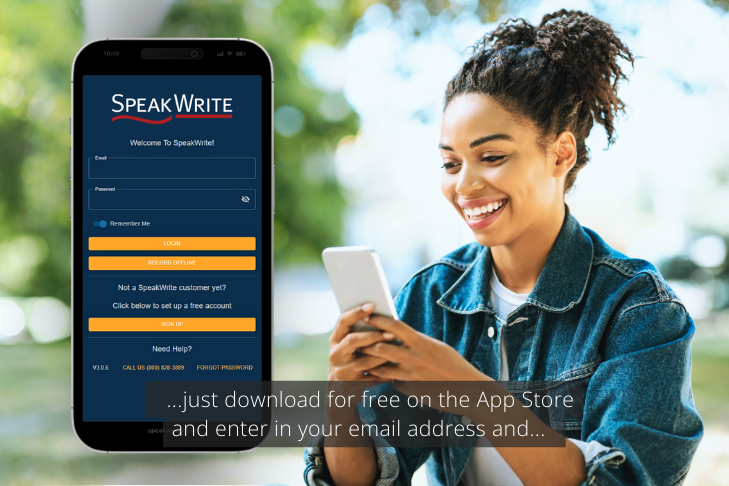
If accuracy is non-negotiable, SpeakWrite delivers professional human-generated closed captions. It’s ideal for agencies that can’t risk mistakes or missed context in video documentation. Plus, you can upload audio or video files directly without changing your existing workflow.
YouTube Studio
YouTube offers automatic captions and manual editing tools. It’s free and accessible, but auto captions often require substantial editing before they’re accurate enough for professional use.
Descript
Descript combines transcription and video editing into a single interface. It’s efficient for creators and teams producing frequent content, though accuracy depends heavily on audio quality.
Kapwing
This browser-based tool is designed for speed and simplicity. It works well for short-form and social media content, but longer or technical videos require careful review.
Adobe Premiere Pro
This tool provides more precise control over timing and formatting. It’s commonly used for training videos and internal communications that require professionalism but are susceptible to errors without careful review.
Manual vs. Automatic Captioning
The biggest difference between manual (human) transcription and automatic transcription is accuracy. Automatic captions may work for informal content, but they often fall short for professional use.
If a video contains technical information, legal content, or compliance-related material, manual caption review is essential. Choosing between automated and human captioning often comes down to how the content will be used and the level of risk that inaccurate captions pose.
If you’re debating between human versus AI transcription services, organizations focused on generating manual captions are better able to handle nuanced, high-stakes information with pinpoint accuracy.
Closed Captioning for Compliance and Accessibility
In many industries, accessible video content is required by law. This includes educational institutions, government agencies, and public-facing businesses.
Inaccurate captions create compliance risks and damage trust. In regulated environments, they expose the organization to legal liability. In heavily regulated environments, such as healthcare, even small transcription errors have outsized consequences.
Research into the benefits and limitations of AI medical transcription shows that while automation offers speed, it often falls short when precision, accountability, and compliance are required.
The SpeakWrite Difference


Closed captioning is a compliance and accuracy issue. If captions are wrong, the video is harder to understand, less accessible, and potentially risky in regulated environments. SpeakWrite delivers professional, human-powered transcription and captioning built for organizations where every word matters.
100% Human Captioning: No AI Guesswork
Auto-caption tools miss names, technical terms, and speaker changes. SpeakWrite uses trained transcriptionists to produce captions with the clarity and precision your content requires.
Captions You Can Trust for High-Stakes Content
Training videos, legal documentation, government communications, and compliance materials can’t afford errors. SpeakWrite captions are created for real-world professional use — not casual social clips.
Fast Turnaround Without Sacrificing Accuracy
SpeakWrite delivers completed transcripts and caption-ready files in about three hours for standard-length recordings, helping teams move quickly without spending hours editing auto-generated captions.
Secure Workflow for Sensitive Video Content
When your video includes confidential or regulated information, security matters, SpeakWrite is trusted by legal teams, law enforcement, and government agencies for secure, reliable transcription.
Closed Captioning That Fits Into Your Process
Upload your audio or video files directly through SpeakWrite’s app or portal. No complicated editing software, no extra steps, no disruption to your workflow.
Closed Captioning: Frequently Asked Questions
How do you create a closed caption file?
To create a closed caption file, transcribe the audio, sync the text to the video timeline using captioning software, format and style your captions, then export the captions in a supported format such as SRT, VTT, or SCC.
How do you make an SCC file?
SCC files are created with professional captioning software that complies with broadcast standards. They require frame-accurate timing and are most commonly used for television and broadcast media.
What is an SRT or VTT file?
SRT and VTT files are text-based caption files that include timestamps and caption text. They tell video players when to display captions and are widely supported by online video platforms.
What is the difference between SRT and SCC files?
SRT files are simple and commonly used for web video. SCC files are more complex, designed for broadcast television, and require specialized software to create and edit.
Choose SpeakWrite for Accurate Closed Captioning and Transcription


You need a partner you can trust to get the captions right the first time. SpeakWrite delivers human-powered transcription built for accuracy and real-world use. Try SpeakWrite today and move your video projects forward with complete confidence in the final product.