Templates
save valuable time by ensuring that documents come back formatted the same every time.
With SpeakWrite's Template feature, users can save valuable time and money.
Using a template is a great way to easily customize your document with elements such as spacing, preferred indentation styles, margins or fonts. Your template can include letterheads, headers, footers, page numbers and other elements to personalize your documents exactly to your liking.
For example, a letterhead template could contain your standard letterhead, layout and signature block so you can just compose the body of the email rather than having to set up the entire letter each time. Or, if you have standard contract language that is commonly used, you may create a template that includes that language and then you can customize based on the specifics of that deal.
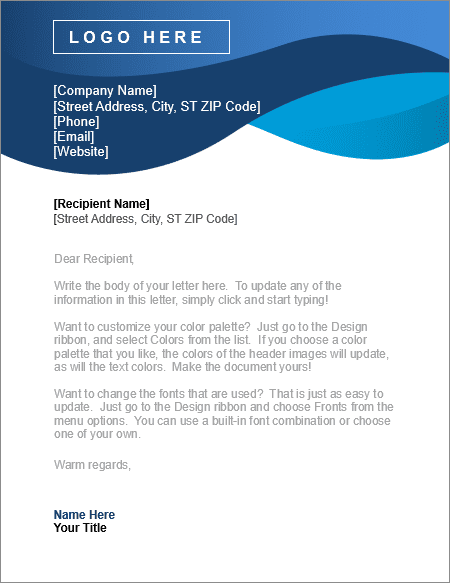

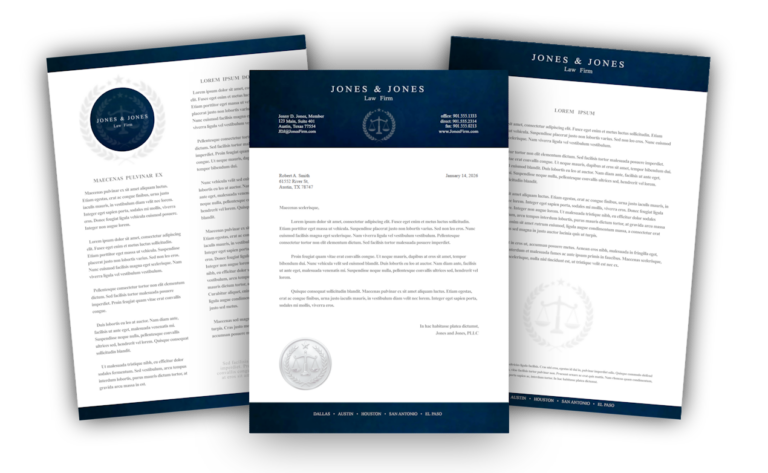
Templates can contain formatting, so your documents come back looking polished and consistent every time. Templates can also contain text that is commonly used, so you don’t have to re-type it each time.
What are Templates?
Templates are pre-designed files that serve as a starting place for a document, eliminating the need to start from scratch.
How to Get Started With Templates
Customize a free sample template
Don't have a template? No problem! Download and customize one of our free sample templates below.
Add templates to your account
Already have a template? Great! Add as many custom templates to your account as you'd like.
Include a template with your upload
Ready to use your template? Let's go! Select the template when uploading a file for transcription.
Get Started with a
FREE Sample Template


Law Enforcement Templates
(GC Numbered Line)
Law Offices / Legal Services Templates
Protective Services Templates
Customize a free sample template
Follow these steps to customize one of our free sample templates:
- Log in to your Member Account.
- Click “Templates” from the left nav menu.
- Click the “View Sample Templates” button.
- Choose an action:
- Click “Add” to add the template directly to your account. You’re done!
- Click “Modify” to download the template to your computer or smart device, and make any changes you’d like.
Add templates to your account
Follow these steps to add your custom template to your account:
- Log in to your Member Account.
- Click “Templates” from the left nav menu.
- Click the “Add Templates” button.
- Enter in a “Description” of the template.
- Click the “Choose file” button to find and select your custom template from your computer or smart device.
- Click the “Submit” button to add the custom template to your account.
Include a template with your upload
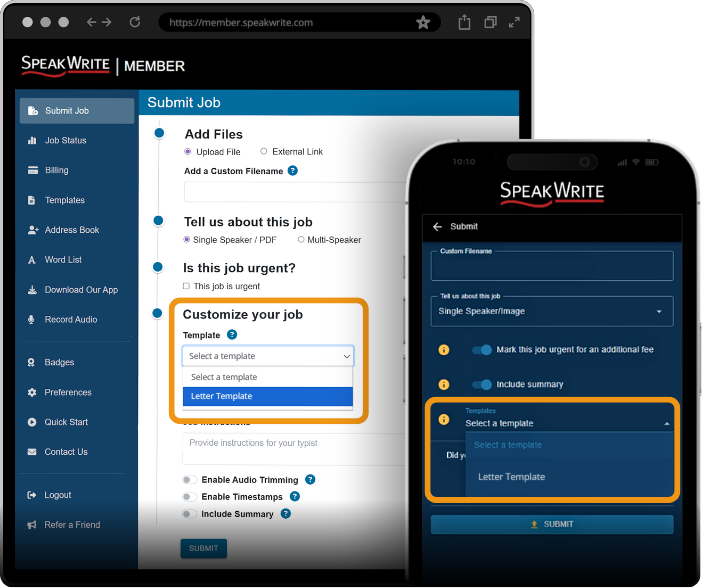
Follow these steps to include your custom template with an uploaded file for transcription:
- Log in to your Member Account.
- Click “Submit Job” from the left nav menu.
- In the “Customize Your Job” section, select the “Template” dropdown, and select one of your custom templates.
- Finish filling out the form, then click the “Submit” button to submit your file and template for transcription.
That's it - you're done!
You can expect your template to be incorporated into your completed, transcribed document.
Did you know?
You can select your template in the mobile & desktop app.
Dictate With Templates
in the Mobile & Desktop App
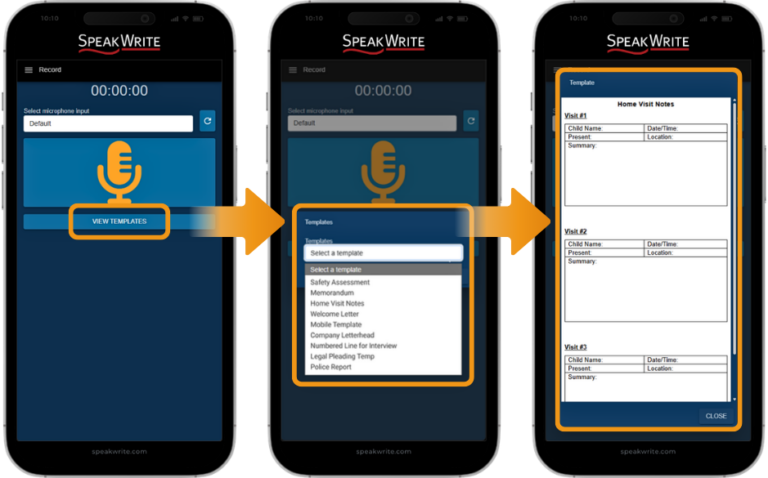
While dictating in the mobile & desktop app, click the “View Templates” button to view your templates, so that you can visually follow along. This ensures a more complete and accurate final document.
Also, you can verbally notify our typist to use one of your custom templates by saying, “Please use my ____ template for this job.” – It really is that easy!